How to Restore Old Photos with AI: What Actually Works
Summary
How to restore old photos comes down to three moves: scan the print flat at 600 dpi, run one conservative AI pass that names every defect and lists what must not change, then finish by hand in Photoshop. Upscale last, never restore faces from tiny crops, and keep the original scan. Colorizing is an interpretation, so label it. One pass per job beats chaining tools.
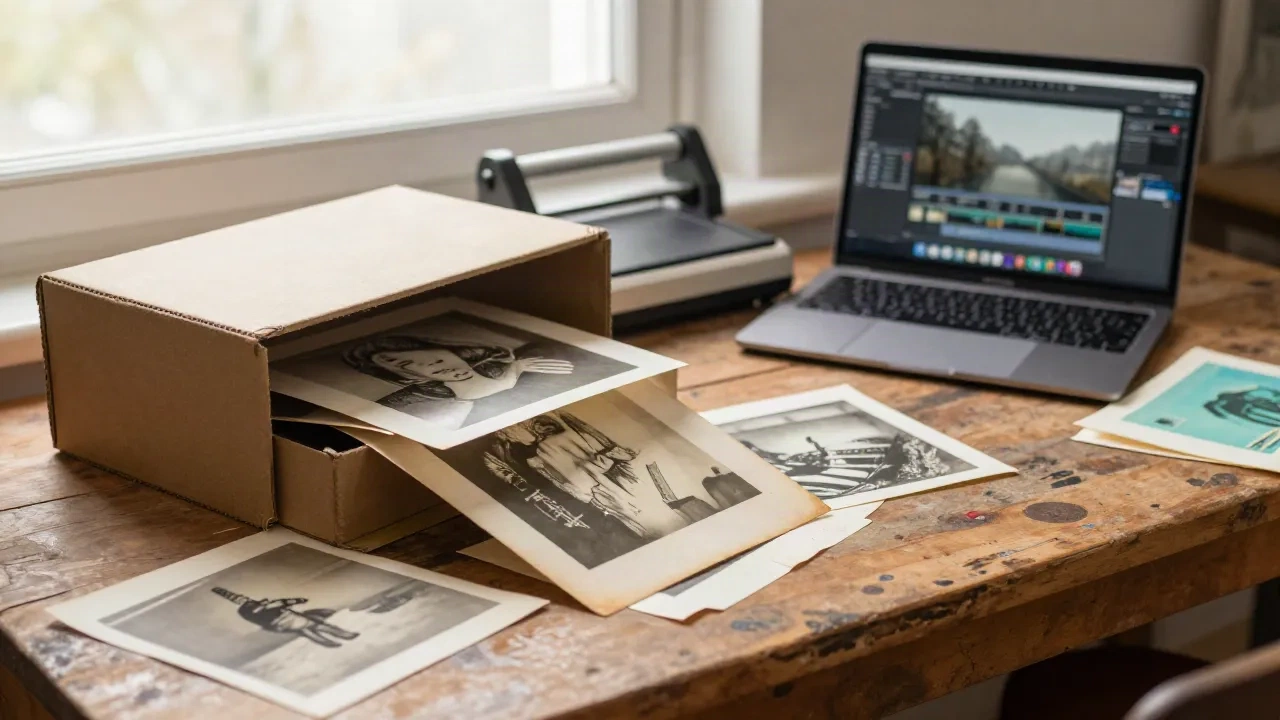
You have a shoebox of faded prints and a free afternoon. How to restore old photos comes down to three moves: scan the print properly, run one restoration pass with an image model or a dedicated tool, then finish by hand. Skip the scan step and nothing downstream saves you. Skip the hand finish and every face ends up looking like a wax figure. Here is the workflow we actually use, with the prompts.
Start with the scan, not the AI
Most bad restorations are bad scans. A phone photo of a glossy print at an angle gives the model glare, perspective warp and a moire pattern to "fix", and it will invent detail to cover all three.
Use a flatbed if you can. The Library of Congress blog recommends 300 dpi/ppi for 4x8, 5x7 and 8x10 prints, and some of its own print projects run higher. We scan at 600 for anything small, because you will want room to crop and upscale later. Save a TIFF master, never touch it again, and work on a copy.
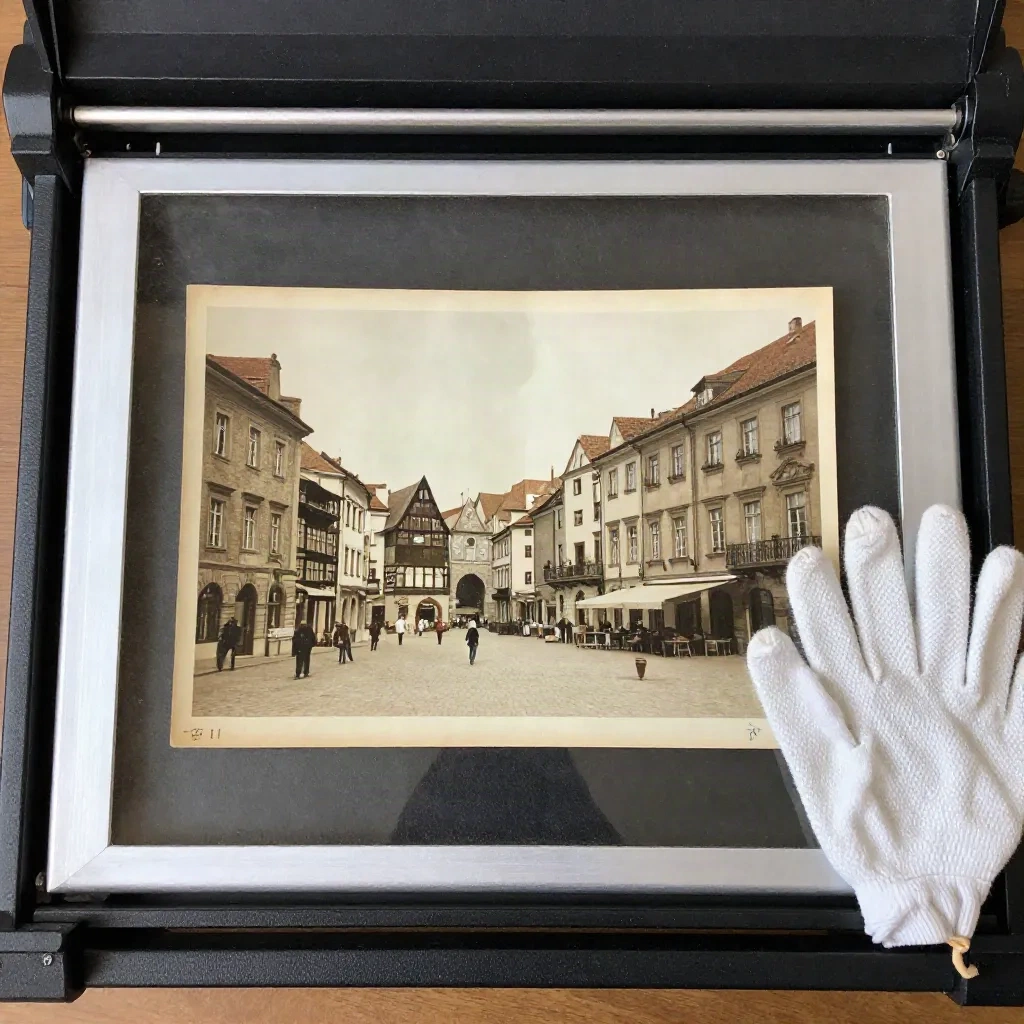
Wipe the glass. Dust on the platen becomes "scratches" the AI then dutifully preserves. Cotton gloves are cheap and stop fingerprints on the emulsion. If the print is curled, leave it under a heavy book overnight rather than flattening it with the scanner lid.
Diagnose the damage before you pick a tool
Three kinds of damage need three different fixes, and one tool rarely handles all of them.
Tonal damage. Fading, yellowing, low contrast, silvering. This is the easy one. Levels and curves fix half of it, and any image model fixes the rest.
Physical damage. Creases, tears, missing corners, stains. This is inpainting work. The model has to guess what was under the crack, so the more structure around it, the better the guess.
Information loss. Blur, tiny faces, grain eaten by a bad scan. Nothing is there to recover. An upscaler will hallucinate plausible detail, which is not the same as restoring it.
Write down which of the three you are dealing with. It decides everything in the next section.
Which route: image model, dedicated tool or Photoshop?
Short version. Pick the route by damage type, not by whatever is trending this week.
Faded, yellowed, flat: image model or Photoshop curves. Watch for over-contrasted skin and plastic faces.
Scratches, creases: image model with a specific prompt. It redraws what it can't see.
Blurry, small faces: dedicated restorer. Faces drift away from the real person.
Big tears, missing areas: Photoshop Generative Fill, by hand. Costs time and a steady hand.
Nano Banana is our default for the first pass because it follows plain-language instructions and keeps the composition. It is also the one most likely to quietly "reimagine" your grandmother, so the prompt does the heavy lifting. More on that below.
Remini is the one-tap option for faces. Fast, usually pleasing, and often wrong in a way you only notice when a relative says "that's not her nose." Use it for a quick look, not for the archive copy.
Photoshop is still the best place to finish. Neural Filters include a Photo Restoration option you can run locally, and the Remove tool plus Generative Fill handle the tears. It is slower, and you stay in control of every pixel. If the photo matters, that trade is worth it.
The prompt that keeps the photo a photo
Here is where most restorations go wrong. If you type "restore this old photo," a model hears permission to redesign it. Be explicit about what stays and what goes.
A genealogy writer testing Nano Banana on family prints landed on the same lesson: be very specific about restoration versus reimagination, say "do not colorize" when you mean it, and ask to preserve original facial features. Her results varied, and one attempt came back "nothing like the BEFORE photo." Same experience here.
Steal this:
Restore this scanned black and white photograph. Remove dust, scratches and the horizontal crease across the upper third. Keep the original grain, the original framing and the original sepia tone. Do not colorize. Do not change faces, expressions, clothing or background objects. Preserve original facial features exactly.
Three habits that matter more than any keyword:
Name each defect. "The tear at bottom left corner" beats "fix damage."
List what must not change. Faces, clothing, framing, grain.
One job per pass. Clean first. Colorize in a second, separate pass, if at all.
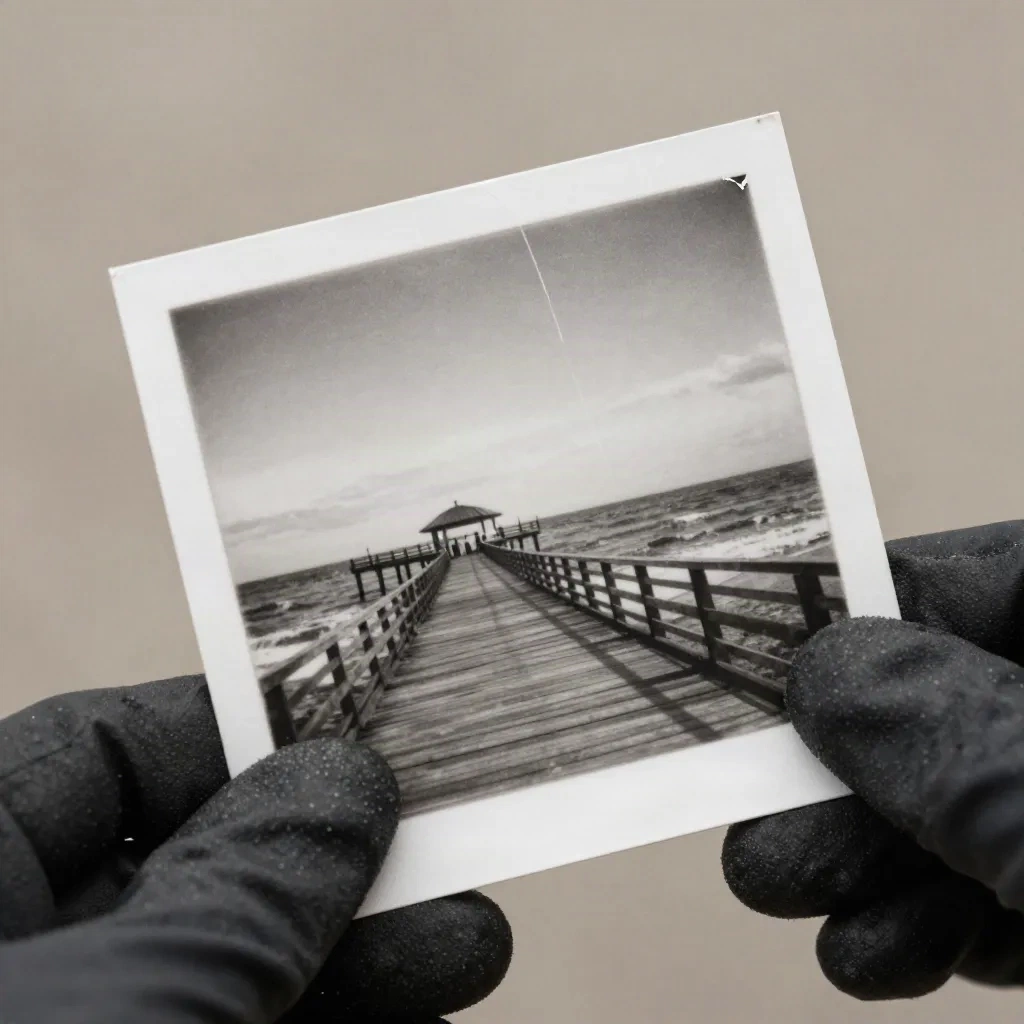
If the output drifts, delete the chat and start over rather than arguing with it. Long corrective threads make models worse, not better. Crack it open, change one line of the prompt, run it fresh.
Faces: where every AI restoration lies a little
Faces are the whole point of the photo and the first thing a model gets wrong. Typical failures: eyes too bright, skin smoothed to porcelain, teeth tidied, a slightly different jaw. The model is averaging your relative with a million other faces.
Our rules:
Compare at 100% against the scan. Not on a phone, not at thumbnail size.
Check the eyes first. Over-brightened eyes are the tell. Pull them back with a soft mask and a small exposure drop.
If someone who knew the person says "that's not them," believe them. Go back to the scan and do that area by hand.
Never restore a face from a tiny crop. Below a certain size there is no identity left, only a guess.
Some models also refuse old photos of people, flagging them as sensitive. If that happens, crop to the damaged area, or run the scenery and the faces in separate passes. A hosted tool with different guardrails can be the practical fallback.
Upscale last, and only if you need to
Upscaling is the step people do first and should do last. Run it on a clean image, because upscalers sharpen defects as happily as detail.
Topaz Photo AI is the safe pick for prints: it adds resolution without repainting the scene, and its face recovery has a strength slider you can turn down. If you want a model that invents texture on purpose, Magnific does that, but for restoration that is usually the wrong instinct. A restored photo should look like a good print, not like a new render.
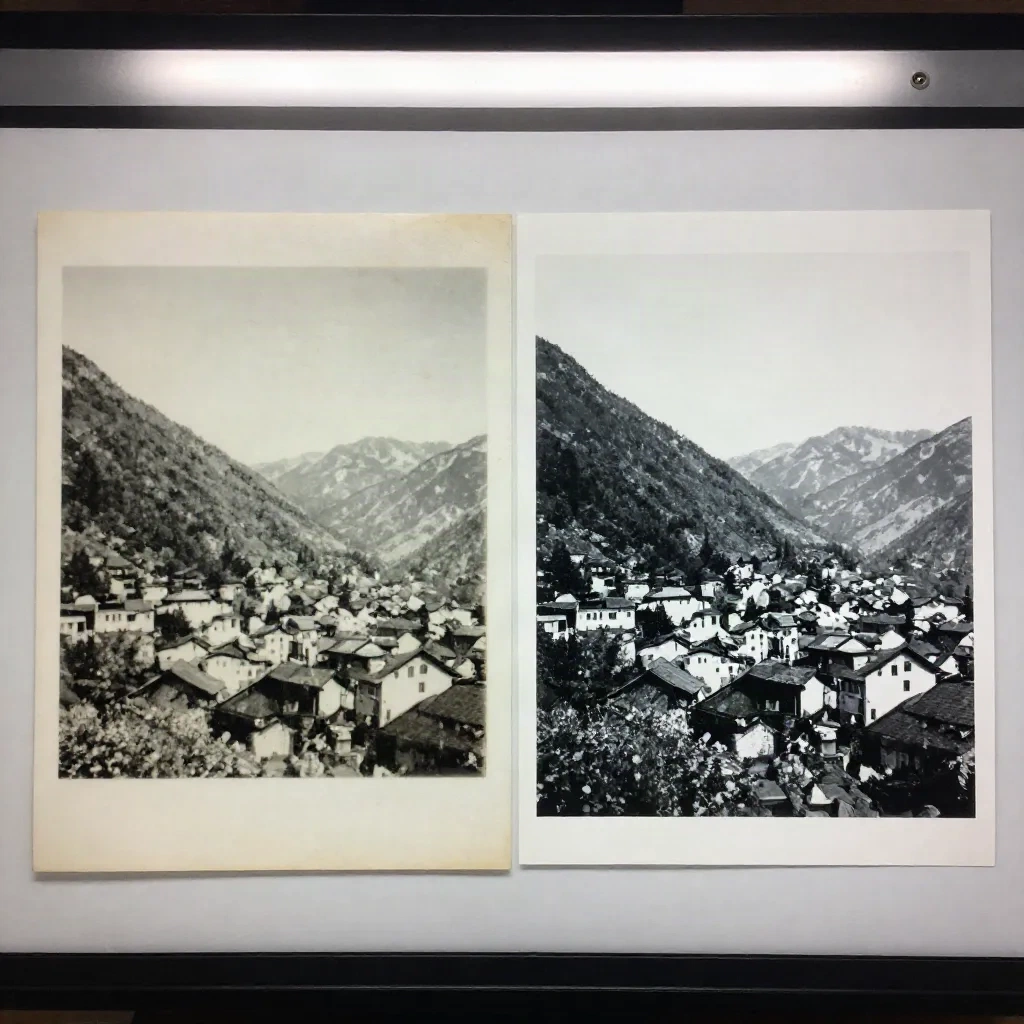
Set a ceiling. For a 4x6 print scanned at 600 dpi, a 2x upscale is plenty for an 8x10 reprint. Beyond that you are paying for hallucinated pores.
Colorizing: do it, but label it. A black and white photo recolored by a model is an interpretation, not a record. Skin tones, uniform colors and wallpaper are all educated guesses. That is fine for a wall print, and a problem for family history.
Our compromise: keep the cleaned monochrome as the archive version, produce the color version as a clearly named separate file, and write "AI colorized" in the filename. Future you will be grateful.
If you do colorize, give the model anchors. "The dress was dark green, the car was cream" beats letting it pick. Without anchors, everything drifts toward the same warm teal-and-orange palette.
Five mistakes we see in every "before and after"
Restoring from a phone snapshot. Glare and keystone distortion get baked into the result. Rescan.
Running the same image through three tools in a row. Each pass adds its own smoothing. By pass three the grain is gone and the photo looks like a game cutscene. One AI pass, one hand pass, done.
Trusting the preview. A restored image at 800 pixels wide always looks great. Zoom to 100% on the eyes, the hands and the edges of the crease repairs before you call it finished.
Letting the model crop or "outpaint" the frame. Torn edges tempt you to extend the picture. Fine for a wall print, but you are now adding a street the photographer never shot. Mention it in the filename if you do it.
Skipping the grain. Film grain is part of the picture. When a prompt says "sharpen" without "keep the original grain," the result looks digital and wrong. Ask for the grain explicitly, or add a light layer of it back in Photoshop at the end.
Keep the originals. Keep the physical print and the TIFF master. Keep the restored copy as a new file. Write names, dates and places into the metadata or the filename before you forget who is in the picture. Pencil notes on the back of prints are worth a photo of their own.
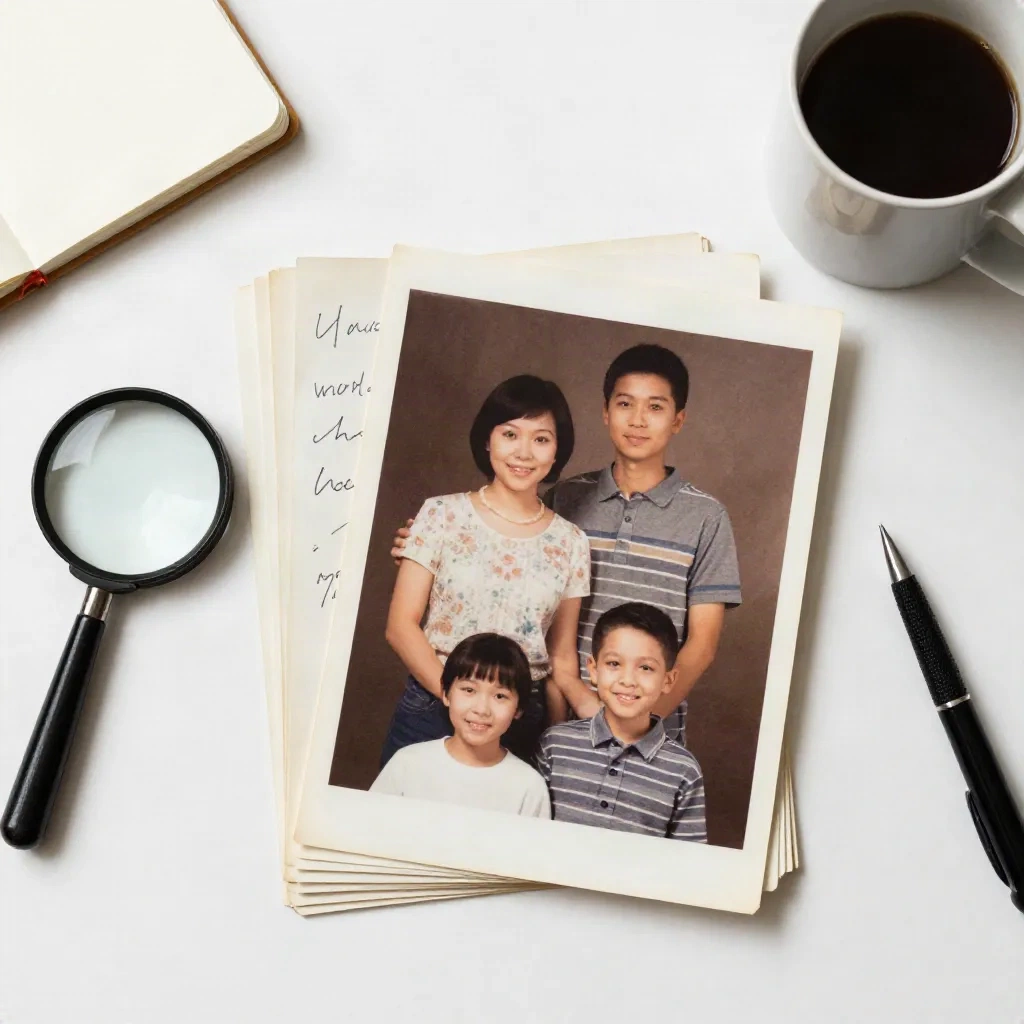
AI restoration is a rendering of the photo, not the photo. In ten years a better model will do a better job from your clean scan, but only if you kept the scan.
What we would actually do on a Saturday
If we had one box and one afternoon: scan everything at 600 dpi, sort prints by damage type, run the whole stack through one conservative Nano Banana prompt, hand-fix the 10 prints that matter in Photoshop, upscale the three you plan to frame, and stop there. Not every print needs treatment. A faded snapshot of a parked car can stay faded.
Copy the prompt above, drop it into your model of choice, and change one line at a time. That is the whole trick. It is not magic, it is a disciplined scan and a prompt that says what must not change.